Quickstart — connect your first Recurly site
Get a Recurly API key, register your site with Retrixus, and ask your first question. About fifteen minutes.
By the end of this page you will have connected one Recurly site to Retrixus and asked it a question. Allow about fifteen minutes. Nothing here is difficult; there are just six steps and the last one happens in a different application.
You will need to be able to sign in to Recurly with an account that can create API credentials. If you cannot, this is the moment to ask whoever can — everything else here is yours to do.
Step 1 — Get your Recurly API key
An API key is a long password that lets one program talk to another on your behalf. Recurly calls these API Credentials.
- Sign in to Recurly.
- In the left-hand menu choose Integrations, then API Credentials.
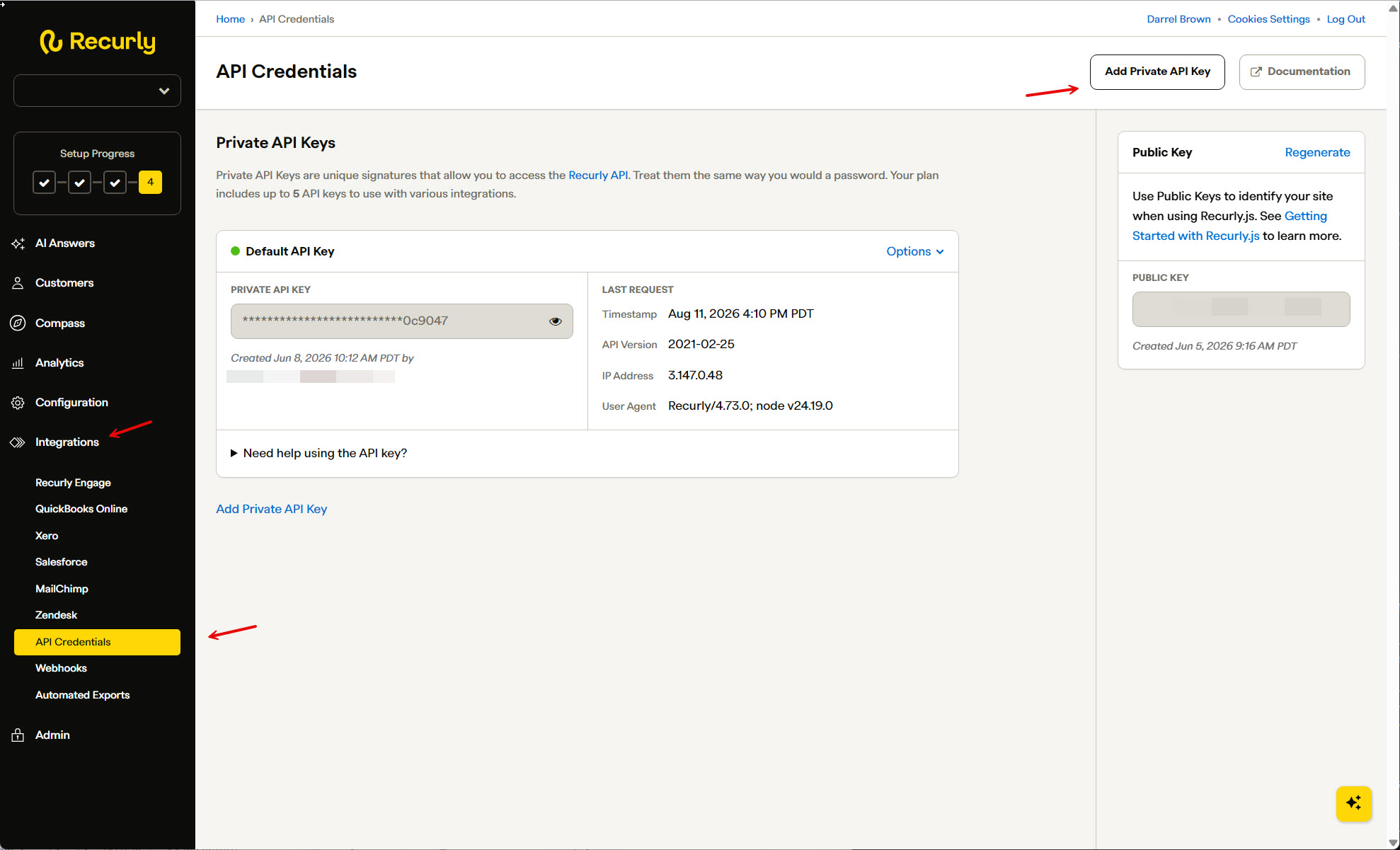
Recurly, captured 2026-08-12. API Credentials sits under Integrations, near the bottom of the left-hand menu — not under Configuration, which is the reasonable guess.
- Choose Add Private API Key — top right, or the same link under the list of existing keys.
- Give it a Key Name you will recognise later.
Retrixusis a good one, because in six months you will want to know what it was for. The Notes field is optional and a good place to put what it is for.
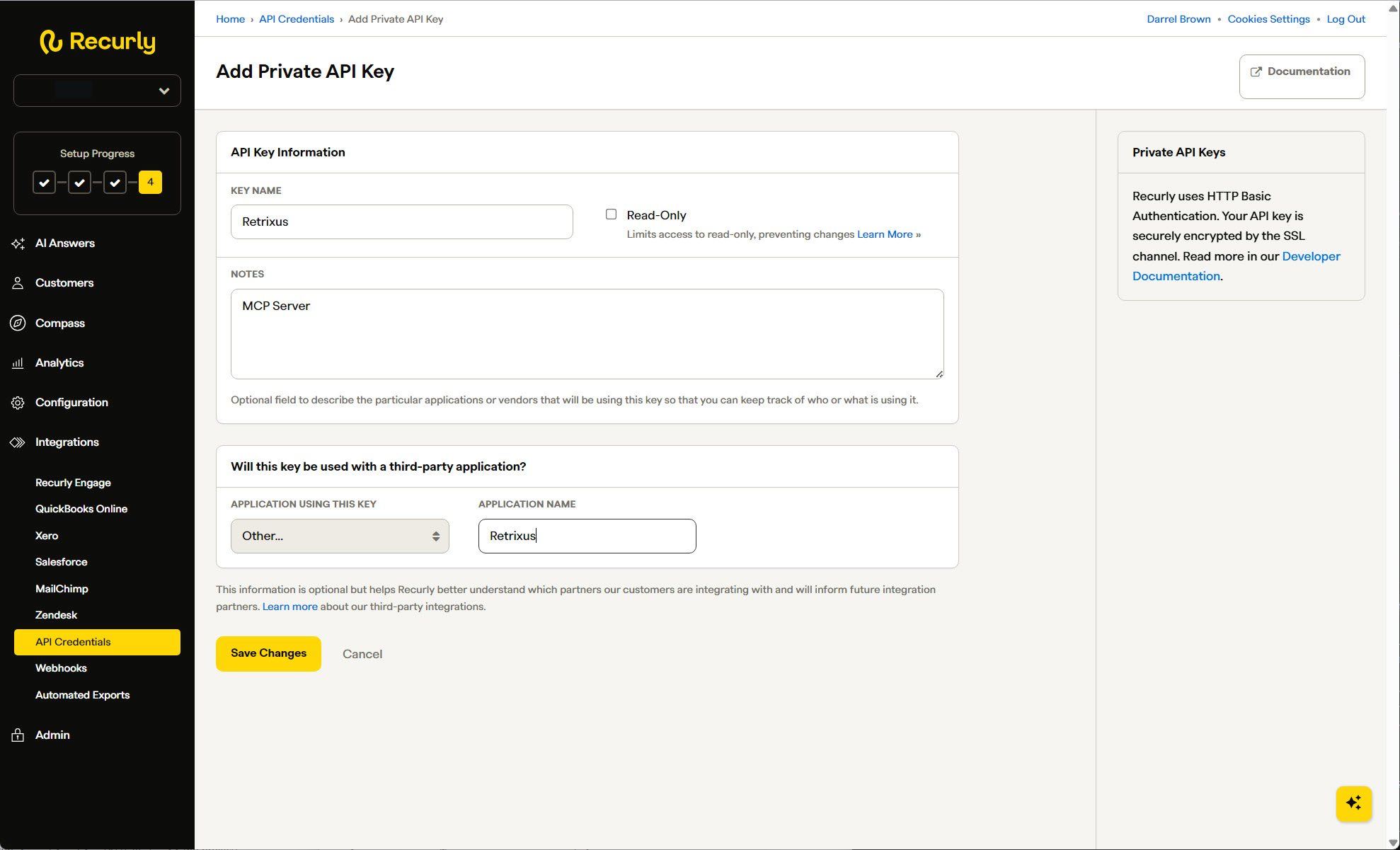
Recurly, captured 2026-08-12. Only Key Name is required; everything else on this form is optional.
- Choose Save Changes, then copy the key. Recurly shows it once.
Also note your site's subdomain. If your Recurly address is https://acme.recurly.com, your
subdomain is acme.
Step 2 — Sign in to Retrixus
Go to https://portal.retrixus.com/ and sign in with Google.
Your address has to have been added to your organisation first. If it has not, Retrixus says so rather than guessing — and the sign-in screen lists the three reasons it can refuse, so you can tell which one applies without having to ask anyone.
There is no password to create. Retrixus does not store passwords.
Step 3 — Add your Recurly site
Choose Add a site. Retrixus calls each connected Recurly account a site — more on that here.
You will be asked for six things, in this order:
| Field | What to enter | Can it be changed later? |
|---|---|---|
| Recurly subdomain | The acme from acme.recurly.com |
No |
| Short name | A nickname you will use when asking questions, like acme or uk-billing |
No |
| Full name | A human label, like "Acme UK Billing" | Yes |
| Which Recurly is this? | Sandbox or production | No |
| Region | United States, unless your Recurly site is European | No |
| Recurly API key | The key you copied in step 1 | Yes — see "Replacing a key" below |
Choose Add site.
Step 4 — Retrixus checks the key
Before saving anything, Retrixus makes a handful of calls to Recurly to confirm three things: that the key works, that it belongs to the site you named, and what that site can do.
If it succeeds, the site is saved and appears in your list.
If it fails, nothing is saved at all — no half-registered site to clean up. You will get a plain explanation of what went wrong:
| What you see | What it means | What to do |
|---|---|---|
| The key was not accepted | The key is wrong, or it was deleted in Recurly | Create a new key and try again |
| No site matching that subdomain | The key is valid but belongs to a different Recurly site | Check the subdomain against your Recurly address |
| Wrong region | The site exists, but in the other region | Change the region to the one named in the message and try again — Retrixus tells you which, and will not switch silently |
Step 5 — Create a token for your assistant
A token is what your AI assistant uses to identify itself to Retrixus. It is separate from your Recurly key, and your assistant never sees the Recurly key.
Choose Mint token, give it a name that says which assistant it is for — darrels-claude,
support-chatgpt — and copy the value.
Tokens begin with rtx_live_ or rtx_test_. There is a second kind of credential, for
administration, that begins with rtx_op_ — the difference is here. The
prefixes differ so that pasting one into the wrong box fails immediately and obviously, rather than
in some confusing way later.
Step 6 — Connect your assistant
Follow the page for the assistant you use:
Then try your first five prompts.
Replacing a key
If the Recurly key is ever exposed — pasted into the wrong window, sent in an email, left in a document — replace it immediately:
- In the console, open the site and choose Replace key.
- Paste a new key from Recurly.
The old one is destroyed. You do not need to remove and re-add the site, and your alias, tokens and history all survive.
If you need to stop all access right now and sort it out afterwards, revoke the tokens instead — that takes effect immediately and does not touch Recurly at all.
If you get stuck
Ask your assistant. The help tool serves these same pages, and setup_status will tell you
exactly which step you are on and what is missing — including when the answer is "you have not
added a site yet".
Try it on your own Recurly data
Start free on one Recurly site. Connect Claude or ChatGPT and ask your first question in about 15 minutes.
Start free